
Question
You would like to know how to transfer your Tool Palettes to another machine, keeping the Palettes and Palette Groups:

Answer
-
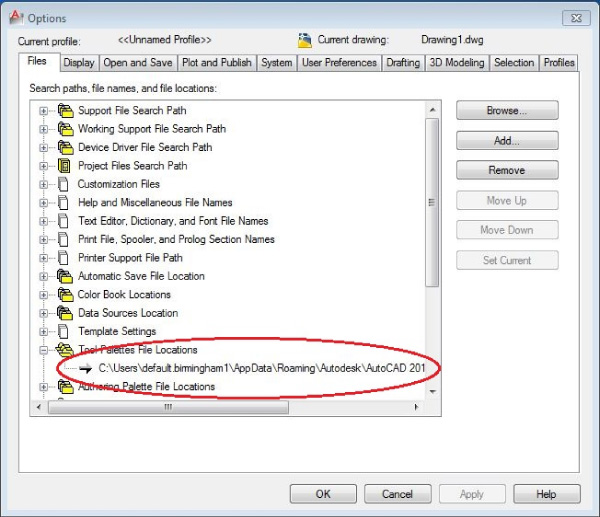
The location of the Tool Palettes folder can be found using the Files tab within the Options dialog. Expand the Tool Palettes File Locations. The default location is C:\Users\\AppData\Roaming\Autodesk\AutoCAD 2012 – English\R18.2\enu\Support
-
On the second machine, browse to the location of the Tool Palettes folder and rename the default folder to ToolPalette.old
-
Copy the ToolPalette folder from the first machine in to this location
-
On the second machine, browse to the location of the Tool Palettes folder and rename the default folder to ToolPalette.old
-
Copy the ToolPalette folder from the first machine in to this location

-
Once the main Tool Palettes folder has been copied across you now need to copy the “Profile.aws” file which holds the information about the Palettes and Palette Groups
-
You need to know the name of the current AutoCAD profile that is being used. From the first machine, within the AutoCAD options, select the Profile Tab

-
Browse the following location:
- C:\Users\\AppData\Roaming\Autodesk\AutoCAD 2012 - English\R18.2\enu\Support\Profiles

-
Copy the Profile.aws file from within the appropriate profile folder
-
Overwrite this file on the second machine within its current profile folder
Comments
0 comments
Please sign in to leave a comment.