
By Justin Doughty
With the Introduction of AutoCAD 2017 came the excellent feature to import and convert vector based PDF files into AutoCAD geometry.
This can be very useful when sharing designs between departments or even businesses.
My colleague Clint Brown produced the following article on this:
However what if you do want your design to be used or converted in AutoCAD 2017? The design could be protected in some way, or maybe you do not want to give your design to someone who may change it.
If we are not worried about format we could use Autodesk’s DWF format instead, this is generally smaller in file size that PDF and can be viewed easily in many ways.
If PDF is needed, then we need to create a raster based PDF file which cannot be converted. To do this inside of AutoCAD use the following settings.
In the Plot setup go to “Shaded viewport options” and just change this from the default “As displayed” to Hidden, Realistic or Shaded:
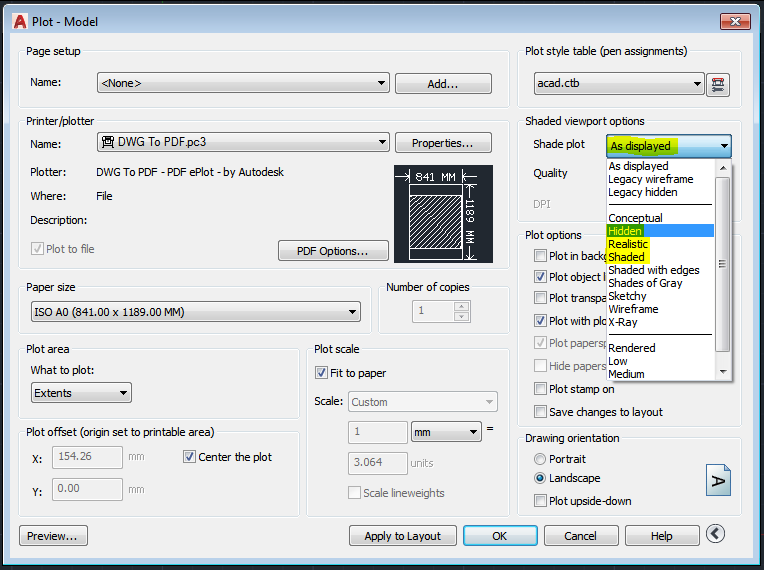
This will create a raster PDF file. You will notice however the file size is a lot larger than a vector PDF. For example a drawing that makes a 150kb vector PDF file, will make around a 1mb raster PDF file.
A quick way to decrease the file size, is to set the Quality to Preview:

If you then want to manually tweak the quality/file size further, you can edit the PDF Options below:
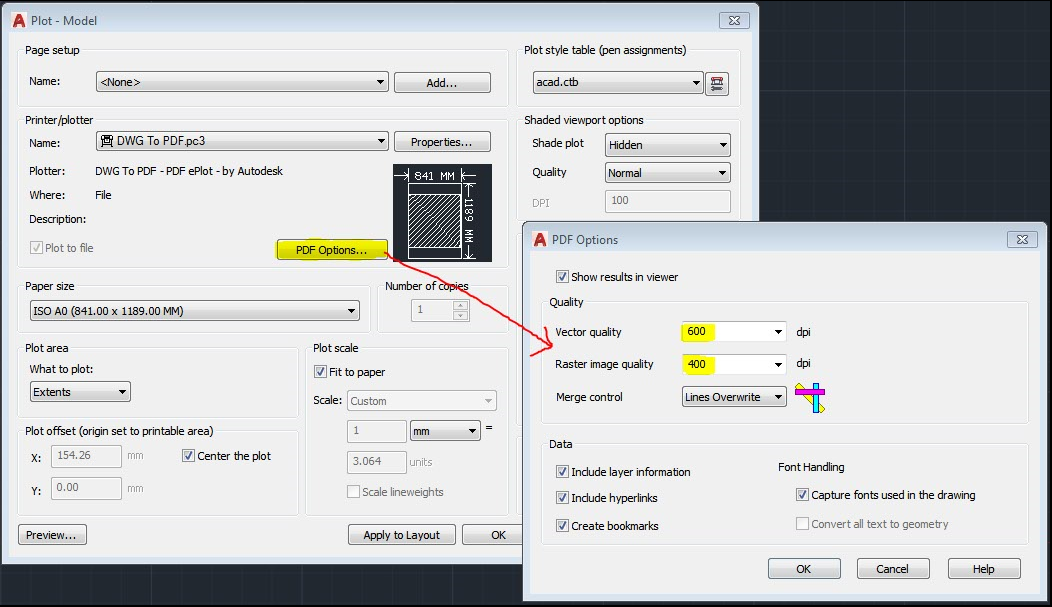
With a bit testing, you can balance quality and file size to something acceptable. In my testing the drawing used, created a 167kb vector file, using Hidden and settings the PDF Options to 350x350 dpi, gave a readable 400kb raster PDF that cannot be converted.
Comments
0 comments
Please sign in to leave a comment.