
by Luke Davenport
A good question was posted:
Can this feature suppression code be used for suppressing components as well?
Well as the answer is yes - I thought it would make a good quick blog. Here’s the minor tweaks you need:
1) Create a multi-value parameter (as before), and make the values ‘PartA’, ‘PartB’, ‘PartC’ etc…..
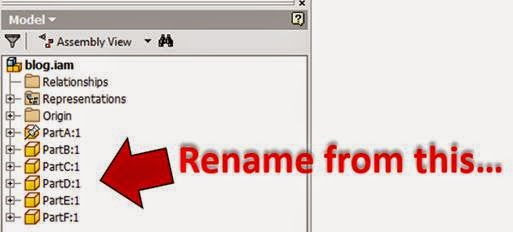
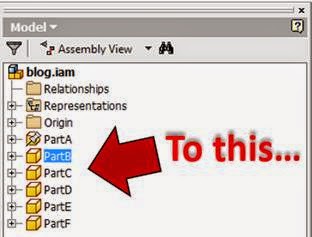
2) Make sure you rename the ‘Browser Nodes’, so that the component names in the browser don’t have the ‘:1’, ‘:2’ etc.
3) Make sure you create a custom level of detail (if you haven’t already). You can see in the picture below I have a custom level of detail (LOD) called ‘iLogic’ active. This is a standard requirement in order to be able to suppress components in Inventor.

4) Use the (only slightly) modified code below.
And you should be good to go.
Here’s the code. Enjoy!
' Start of iLogic code ******************************
' Create an arraylist containing the multi-value list
ParameterValues = MultiValue.List("CadlineLogo")
' Loop through all values in arraylist
For Each Value As String In ParameterValues
Try
If Value = CadlineLogo Then
Component.IsActive(Value) = True
ElseIf Component.IsActive(Value) = True
Component.IsActive(Value) = False
End If
Catch
End Try
Next
InventorVb.DocumentUpdate()
' End of iLogic code ******************************
Comments
0 comments
Please sign in to leave a comment.