
By Gus Petrikas

Lost the keys to your Vault? Here is how you fix the Missing Vault Tab problem in Autodesk Inventor 2016:
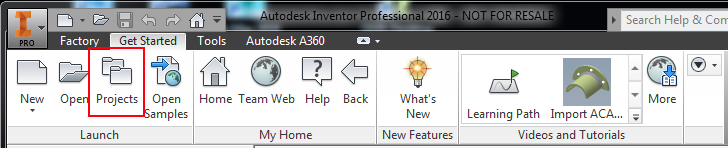
- First of all, make sure you have your Vault Project activated: Close all open files in Inventor, and navigate to the “Get Started” tab. Open Projects.
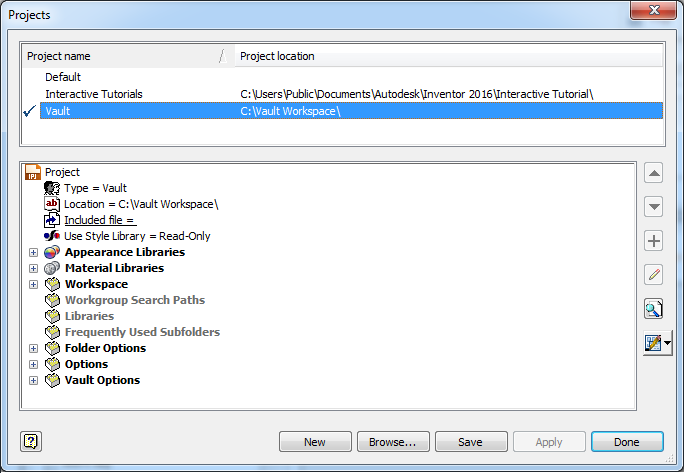
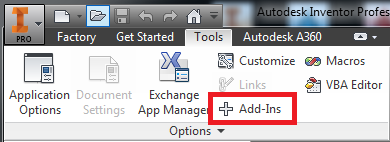
- Once you are confident that you have the right project selected, close the Projects window and navigate to the “Tools” tab. Hit “Add-ins”.
- Check if Inventor Vault add-in is Automatic / Loaded. If it is unloaded, select the add in, and check the box at the bottom of the window that says “Loaded/Unloaded”.
- Right-click anywhere and hit “Show Hidden Members”.
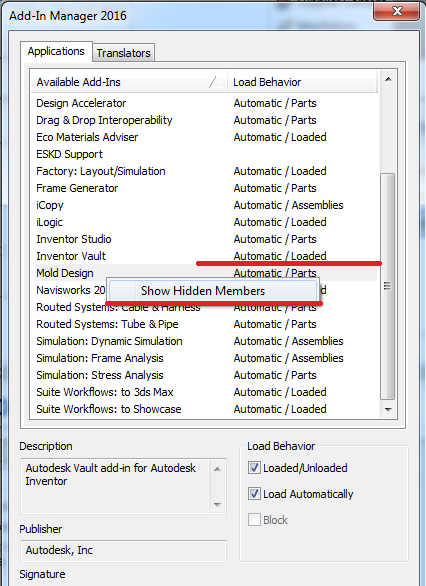
- Find the “EDM Addin” and load it. Tick the “Load Automatically” box as well.

- Restart Inventor.
That’s it, your Vault Tab should now be in the ribbon.
Comments
0 comments
Please sign in to leave a comment.